
My Fedora 39 (Gnome 45) Full Setup
Upgrade Fedora with Neofetch, zsh, oh-my-zsh, Nerdfonts, Neovim, NvChad, VirtualBox, 1Password, Ulauncher, and Gnome tweaks for efficiency…
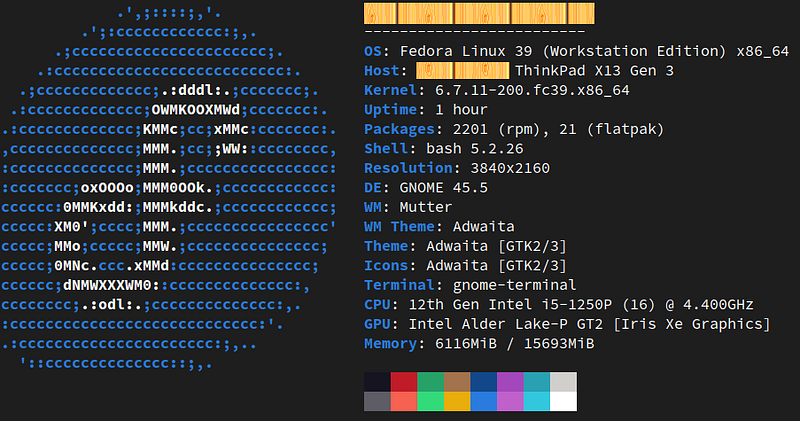
Upgrade Fedora with Neofetch, zsh, oh-my-zsh, Nerdfonts, Neovim, NvChad, VirtualBox, 1Password, Ulauncher, and Gnome tweaks for efficiency and customization
System Information
Neofetch is in Fedora’s official repositories starting from Fedora 27.
sudo dnf install neofetchInstall Nerdfonts
Download any font you like here: https://www.nerdfonts.com/font-downloads
Put the extracted files to /usr/.local/share/fonts if you want them to be installed only to your user, or /usr/share/fonts if you want them installed globally (you need sudo right).
Rebuild the font cache: fc-cache -f -v
Install zsh
sudo dnf install zshLet’s verify and see the version:
zsh - versionNow, make zsh the default terminal:
sudo chsh -s $(which zsh) $(whoami)If you see the following output in the terminal, it went well:
Changing shell for <user_name>.
Password:
Shell changed.
Sometimes, the change will not be reflected even when you exit the terminal and log out/log in. It is better to restart your computer after the change.
Lastly, we are going to install oh my zsh:
sh -c "$(curl -fsSL https://raw.github.com/ohmyzsh/ohmyzsh/master/tools/install.sh)"OMZ is powerful, so please check its website for more details and plugins: https://ohmyz.sh/. My personal favorite plugins are git, z, zsh-autosuggestions.
For terminal icons with different OMZ themes, install powerline fonts (more info: https://github.com/powerline/fonts#quick-installation):
sudo dnf install powerline-fontsTerminal Theme
There is a really good simple switcher available: https://gogh-co.tgithub.io/Gogh/
bash -c "$(wget -qO- https://git.io/vQgMr)"Then, you can select which one you like (you can also see the preview on the website). As Ubuntu has been my love for a very long time, my choice is Clone of Ubuntu, but I also like Dimmed Monokai.
I Changed My Go-to Linux Distro for the First Time from Year 2006
Install Neovim
sudo dnf install -y neovim python3-neovimWhen you install Neovim, it works with the command nvim not to clash with Vim as vim. So, we need to create an alias for nvim if you want to reach Neovim using the vim command. I assume that you installed zsh as the default shell:
sudo nvim ~/.zshrcAdd the following line (generally, I add at the end of the file):
alias vim=nvimIn some consoles (it happened to me with Konsole in KDE), aliases don’t work with sudo (https://www.gnu.org/savannah-checkouts/gnu/bash/manual/bash.html#Aliases). As a result, I also suggest to add the following alias:
alias sudo='sudo 'Neovim itself is very plain, like Vim, so we would like to have its power with NvChad (https://nvchad.com/docs/quickstart/install/) . I also tried AstroNvim, which is more complicated and ready for my taste, but NvChad is super lightweight if you don’t code in Vim.
If you follow the article in the same order as I wrote, you have a NerdFont and Neovim, so we can skip the prerequisites for the installation of NvChad, but I would like to install ripgrep even if it says optional:
sudo dnf install ripgrepIf you don’t have nvim config folder, let’s create it first:
mkdir -p ~/.config/nvimImportant: If you already have Neovim and did some config, the documentation suggests removal of the following folders:
rm -rf ~/.config/nvim
rm -rf ~/.local/share/nvim
Now, showtime!
git clone https://github.com/NvChad/starter ~/.config/nvim && nvimAfter the installation is finished and you press the enter key, write the following command (in Vim, commands start with pressing: from the keyboard): :MasonInstallAll
Let’s exit with :q and remove the .git folder from ~/.config/nvim. When the folder is removed, let’s reen nvim with the vim command and update the plugins: : Lazy sync.
Well done! There are many features of NvChad, so I suggest visiting its website: https://nvchad.com/
Important: The leader key is space in NvChad by default. To change the theme, you can use the following key combination: space + th
Gnome Shell
1. https://extensions.gnome.org/extension/779/clipboard-indicator/
2. To have tray icons, there are two solid choices: https://extensions.gnome.org/extension/2890/tray-icons-reloaded/ which created a problem for me when I installed Dropbox, so I use https://extensions.gnome.org//extension/615/appindicator-support/
VirtualBox Installation
Download the file from here and run the following command (be sure that Java is installed in your system as in the terminal with java -version command):
sudo dnf install VirtualBox-…rpmAfter the installation, you probably cannot use USB peripherals with your current user. You need to add the current user to the vboxusers group:
sudo usermod -a -G vboxusers $(whoami)Check if you could add the user successfully:
groups $(whoami)Shortcuts
I live with keyboard shortcuts, so I add the following shortcuts by default (here is how to add custom shortcuts: https://docs.fedoraproject.org/en-US/quick-docs/gnome-setting-key-shortcut/):
Terminal: Ctrl + Alt + T
Clipboard Gnome Shell Extension: Ctrl + Alt + v
Image Viewer
This one is a bit tricky because there is nothing like Apple macOS’ default image viewer (and simple editor). One of the best ones is gThumb (https://wiki.gnome.org/Apps/Gthumb), which is like a lightweight version of IrfanView in Windows.
There is a Pinta for image annotation, but it is not really attractive. Shutter doesn’t support Wayland properly.
I tried another chance to use an app called Annotator (https://github.com/phase1geo/Annotator). It was developed for Elementary OS, but you can install it with some Flatpak tricks on any Linux. However, it requires io.elementary.Sdk/x86_64/7.2, and I don’t like bloating my Linux with different distros' SDK, so I stopped here.
In the end, I found the Ksnip application, which is directly in the Fedora RPM library and Flatpak.
Adding Google Online Account
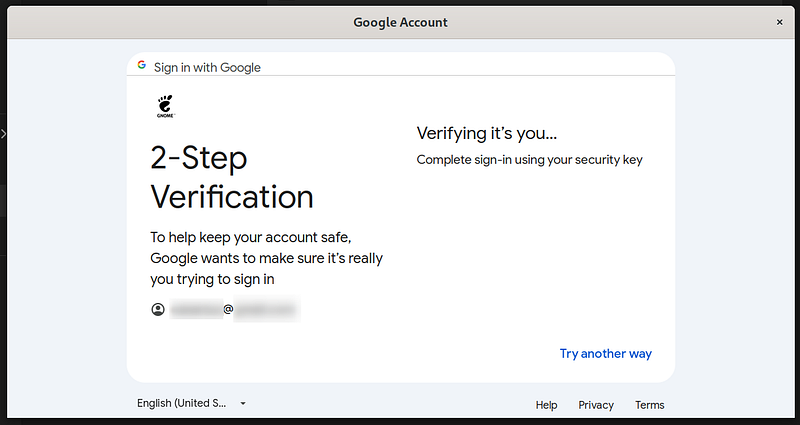
When I try to add Google as an online account, I cannot go further than entering a password. It seems like it's loading, but 2FA doesn’t open. If you are in the same position, there is a quick trick: Right-click> Reload. It may not go to the 2FA choices for the first time; you can try several times.
1Password
There are two hiccups with 1Password:
1. If you install via Flatpak or Snap Store, you won’t be able to unlock 1Password or 1Password CLI with system authentication; you won’t be able to use SSH agent; and the 1Password application cannot communicate with the browser extension, so you need to unlock both of them. As a result, I don’t suggest you use Snap Store and Flatpak versions. For more installation information: https://support.1password.com/install-linux/
2. 1Password provides a new great way to communicate with an app called “Quick Access”, and it has a global keyboard shortcut as Ctrl + Shift + Space by default. Unfortunately, Wayland doesn’t allow global shortcuts and understands it as keyboard sniffing. The workaround is to add a keyboard shortcut directly from settings (inside Settings > Keyboard > Keyboard Shortcuts), where the command will be 1password — quick-access. You can use any name and shortcut as you wish.
Ulauncher
It is my choice for the application launcher. I know there are better or more capable ones, but Ulauncher is in the Fedora repository, and I don’t need to do extra magic to install it:
sudo dnf install launcherThe 1Password keyboard shortcut problem is the same for Ulauncher, and the solution is here: https://github.com/Ulauncher/Ulauncher/wiki/Hotkey-In-Wayland.
Any Right Super Keyboard Specific
I am using Kinesis Advantage 2 as a keyboard with the right super. Gnome maps the keyboard as left super by default. As a result, the right super is not functioning under Fedora Gnome. You have two options:
1. You can remap a key from Kinesis directly: https://kinesis-ergo.com/support/advantage2/
2. You can switch left super to right super via the Gnome Tweaks application:
sudo dnf install gnome-tweaks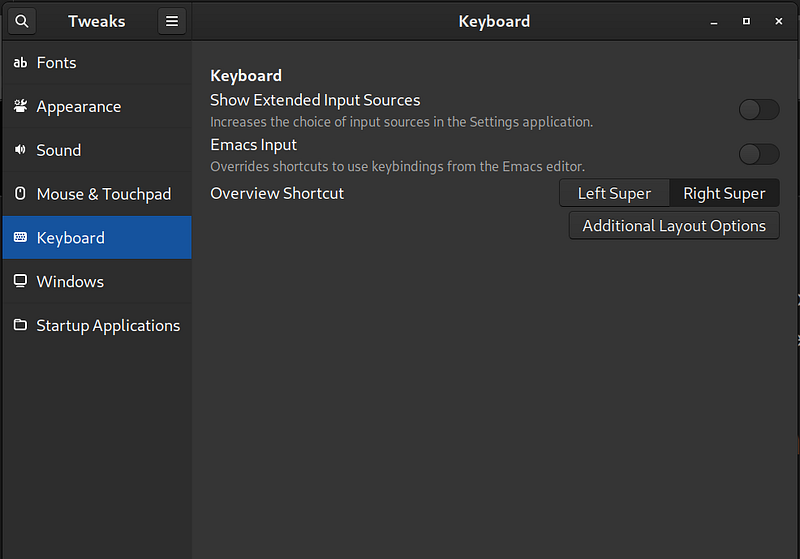
Other Useful Resources
If you like me coming from a Debian or Debian-based distro, you may find this document useful to compare core commands of apt and dnf: https://docs.fedoraproject.org/en-US/quick-docs/dnf-vs-apt/
Fedora has an online magazine: https://fedoramagazine.org/
If you would like to remove any repository in Fedora, all of them are located under /etc/yum.repos.d/
Big Downsides
There is no proper PDF editor. Although several applications and workarounds exist, they are still unlike modern-day approaches. In my opinion, the most advanced one is Okular: https://okular.kde.org/.
Text rendering is not like in Apple. Chromium-based browsers, especially, are like CRT monitors. Of course, there are some ways, but I don’t want to mess with rendering.
Specifically for Gnome, you need to do many hacks: Gnome Tweaks, Gnome Shell